First steps on a new PC: installing Node.js, npm and Git on Windows

A brand-new Windows machine, a fresh terminal, npm -v, and this happens:
'npm' is not recognized as an internal or external command,
operable program or batch file.
Your command is fine. The machine is fine. Windows simply does not ship with Node.js, npm or Git.
This post starts from why the command fails and ends with a verified environment. No prior knowledge assumed.
1. Why commands can be typed at all
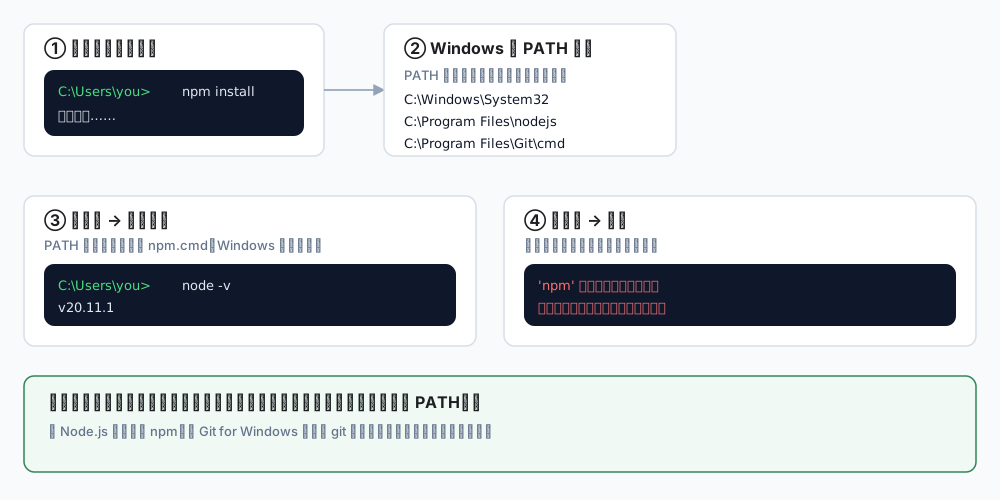
When you type a word into a terminal, Windows walks through a list of directories called PATH, looking for a matching program:
← swipe horizontally to see the full diagram →
So "command not found" has exactly two causes:
- The program is not installed
- It is installed, but its directory is not on PATH
The installers for Node.js and Git add themselves to PATH by default — as long as you do not untick that option.
Background: what you type is usually a real file —
.exe,.cmdor.ps1.npmisnpm.cmd, andgitisgit.exe.
2. What to install
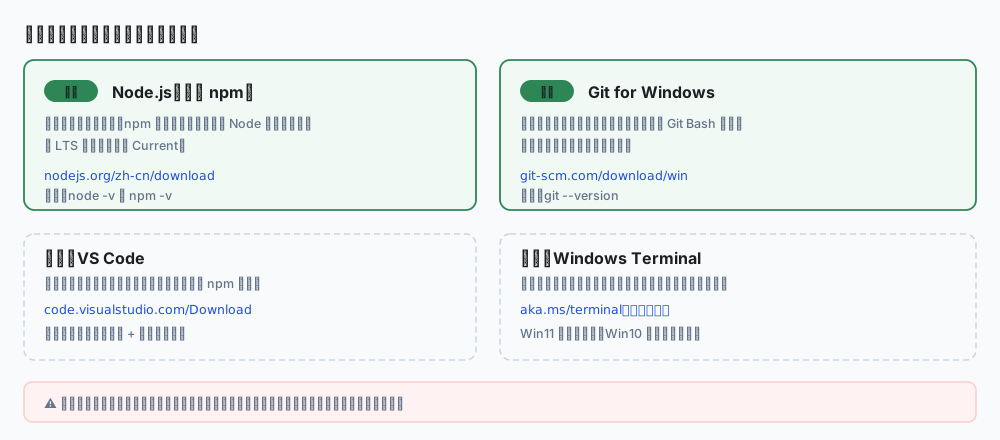
Two are required, two are optional:
← swipe horizontally to see the full diagram →
| Software | Purpose | Official download |
|---|---|---|
| Node.js (LTS) | Runs the project, bundles npm | nodejs.org/en/download |
| Git for Windows | Fetch code, commit changes | git-scm.com/download/win |
| VS Code (optional) | Code editor | code.visualstudio.com/Download |
| Windows Terminal (optional) | A better terminal | aka.ms/terminal |
Two version channels:
- LTS: long-term support, stable — pick this
- Current: newest features, newest bugs — not for a first setup
⚠️ Download only from the official links above. Third-party "green builds" or "all-in-one packs" can be modified, and the risk is not worth it for commands that touch your accounts.
3. Install Node.js
3.1 Download
Open nodejs.org/en/download, pick the LTS column, download Windows Installer (.msi) 64-bit.
3.2 Install
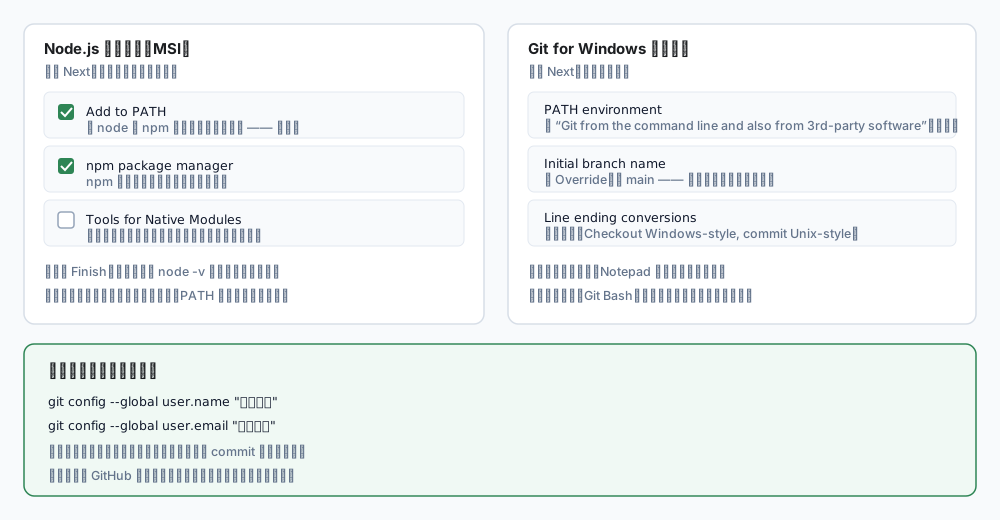
Run the installer and click Next all the way through, pausing on one page:
← swipe horizontally to see the full diagram →
| Option | Choice |
|---|---|
| Add to PATH | Keep it checked — this is the important one |
| npm package manager | Keep checked; npm comes with Node |
| Tools for Native Modules | Leave unchecked — most front-end work never needs it, and it installs gigabytes of compilers |
Click Finish.
3.3 Verify
Close the old terminal and open a new one (PATH is read when a terminal starts, so an old window will not see the change).
node -v
Expected output, something like:
v20.11.1
Then npm:
npm -v
10.2.4
Different numbers are fine. Any version output means it works.
4. Install Git
4.1 Download
Open git-scm.com/download/win and download 64-bit Git for Windows Setup (not the Portable build).
4.2 Install
Click Next through everything; only three pages are worth a look:
| Page | Recommendation |
|---|---|
| Adjusting your PATH environment | Keep the default: Git from the command line and also from 3rd-party software |
| Adjusting the name of the initial branch | Choose Override, type main |
| Configuring the line ending conversions | Keep the default (Checkout Windows-style, commit Unix-style) |
The editor page does not matter; you can change it later.
You also get Git Bash, a Unix-like terminal that is often friendlier for the commands in this series.
4.3 Set your identity
Git needs to know who authored a commit. Right after installing, run:
git config --global user.name "Your Name"
git config --global user.email "[email protected]"
- Use the email tied to your GitHub account, otherwise commits will not count toward your contribution graph
- This is a one-time setup
Verify:
git config --global --list
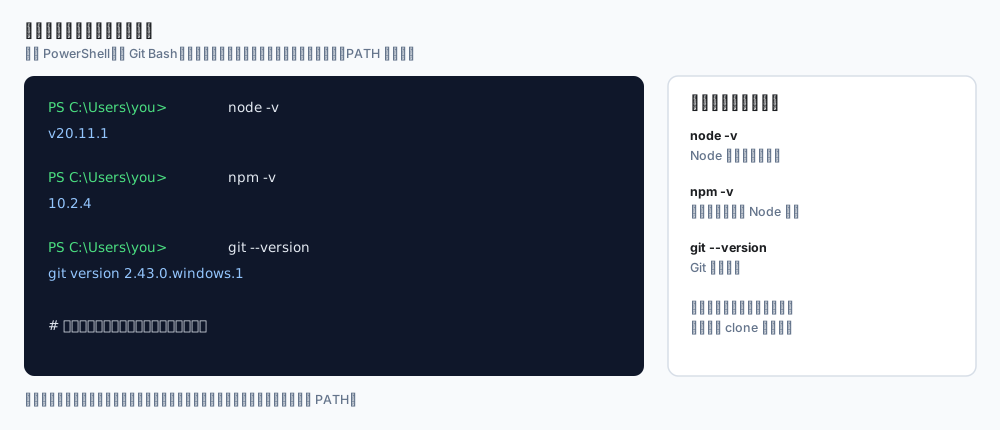
5. Three commands to confirm the environment
← swipe horizontally to see the full diagram →
node -v
npm -v
git --version
If all three print a version, you are done.
To see where a program actually lives, use where:
where node
where npm
where git
It prints the full path. If where finds nothing but the program is clearly installed, PATH is misconfigured — reinstalling with Add to PATH ticked is the quickest fix.
6. Run your first project
A working toolchain is not the same as a working project. Clone a public repository to practise:
# 1. Pick a folder for code
cd D:\Projects

# 2. Clone
git clone https://github.com/LxHanesser/Connexion-Collective.git

# 3. Enter it
cd Connexion-Collective

# 4. Install dependencies (use ci when a lockfile exists)
npm ci

# 5. Start the dev server
npm run start
Open http://localhost:3000 and the site should be running.
npm ci versus npm install
| Command | When |
|---|---|
npm install | Day-to-day work, adding or changing dependencies |
npm ci | Cloning someone else's project: installs exactly what package-lock.json says, faster and identical |
If you remember one rule: cloned project, use npm ci.
7. The second error everyone hits: npm.ps1
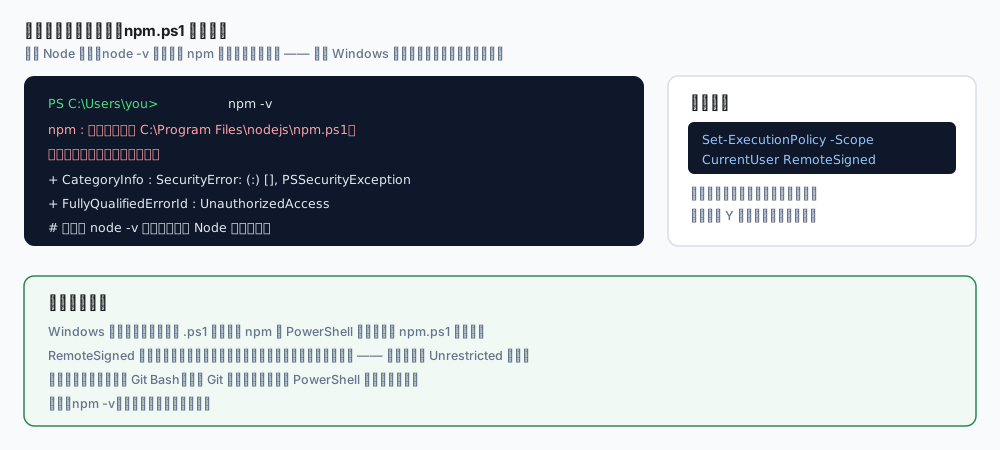
Node is installed and node -v works, but npm throws a wall of red text:
← swipe horizontally to see the full diagram →
That is Windows script execution policy, not a broken Node install. One line fixes it:
Set-ExecutionPolicy -Scope CurrentUser RemoteSigned
Press Y, then reopen the terminal.
| Argument | Meaning |
|---|---|
-Scope CurrentUser | Affects only your user, not the machine |
RemoteSigned | Local scripts run; downloaded scripts must be signed |
Much safer than setting Unrestricted.
If you would rather not change system settings, use Git Bash (installed with Git); it is not subject to this policy.
8. Common error table
| Error | Cause | Fix |
|---|---|---|
'npm' is not recognized | Node missing, or not on PATH | Reinstall with Add to PATH; reopen the terminal |
npm.ps1 cannot be loaded, running scripts is disabled | PowerShell policy | Set-ExecutionPolicy -Scope CurrentUser RemoteSigned |
'git' is not recognized | Git missing, or PATH not set | Reinstall Git, keep the default PATH option |
EPERM / EACCES | Permissions, files locked | Avoid system folders; pause antivirus scanning |
Unsupported engine | Node too old | Install the latest LTS |
fatal: not a git repository | Wrong directory | cd into the project first |
Host key verification failed | SSH used without keys | Clone over HTTPS instead |
| Garbled Chinese output | Terminal encoding | Use Windows Terminal, or chcp 65001 |
npm ERR! network | Network or proxy | Check proxy and corporate restrictions |
9. Final checklist
| Check | Command | Expected |
|---|---|---|
| Node works | node -v | v20.x or newer |
| npm works | npm -v | around 10.x |
| Git works | git --version | git version 2.x |
| Git identity set | git config --global user.name | your name |
| Can clone | git clone <any public repo> | no errors |
| Can install | npm ci | creates node_modules/ |
| Can run | npm run start | page opens in browser |
10. Optional: multiple Node versions
Some old projects need Node 16 while new ones want 20. nvm-windows handles that:
nvm install 20
nvm use 20
nvm list
⚠️ Uninstall any existing Node.js before installing nvm, otherwise both fight over PATH and versions get confusing.
You do not need this on day one. Get a single version working first.
Wrap-up
The whole flow is five steps:
1. Install Node.js LTS (keep "Add to PATH")
2. Install Git for Windows (default branch: main)
3. Configure git user.name / user.email
4. Reopen the terminal, run node -v / npm -v / git --version
5. Clone a project, npm ci, npm run start
Most of the time is not spent clicking Next. It is spent on the command still not being found after installing, or npm printing a wall of red. Nine times out of ten that comes down to three things: PATH not applied, terminal not restarted, script execution policy.
Remember those three and Windows will rarely block you again.
Next step
Once the toolchain works, continue with Deploying Docusaurus to Cloudflare Pages — build settings, caching and security headers, and a go-live checklist that puts this environment to work.